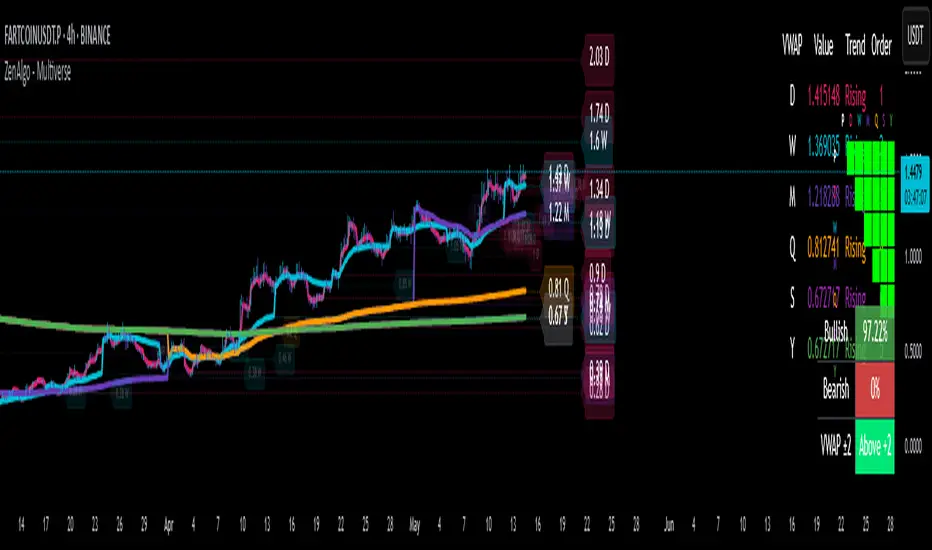
Supertrend Alert with Arrows and Time FilterOverview
This script is designed to generate trading signals based on the Supertrend indicator, a popular technical analysis tool. The Supertrend indicator is used to identify the direction of the market trend and potential reversal points.
Supertrend Settings
The script uses two sets of Supertrend settings:
Small Supertrend
Factor: 3.0
ATR Period: 10
Big Supertrend
Factor: 10.0
ATR Period: 30
These settings are fixed and should not be altered to maintain the integrity of the signal generation process.
Configurable Parameters
startHour: The hour at which signal generation begins.
endHour: The hour at which signal generation ends.
These parameters allow users to focus on specific trading hours, optimizing the signal relevance to their trading strategy.
Signal Types
The script generates two types of signals:
Type 1: Reversal Signal
Long Signal: Triggered when the big Supertrend is in an uptrend, and the small Supertrend transitions from a downtrend to an uptrend.
Short Signal: Triggered when the big Supertrend is in a downtrend, and the small Supertrend transitions from an uptrend to a downtrend.
Type 2: Trend Change Signal
Long Signal: Triggered when the big Supertrend changes from a downtrend to an uptrend.
Short Signal: Triggered when the big Supertrend changes from an uptrend to a downtrend.
How the Script Works
Initialization: The script initializes with predefined Supertrend settings.
Data Input: Market data (e.g., price data) is fed into the script.
Supertrend Calculation: The script calculates the Supertrend values using the predefined factors and ATR periods.
Signal Detection: The script monitors the Supertrend values and detects the defined signals based on the conditions mentioned above.
Time Filtering: Signals are filtered based on the specified startHour and endHour, ensuring only relevant signals are displayed within the desired timeframe.
Usage
Set Parameters: Define startHour and endHour according to your trading schedule.
Run Script: Execute the script with market data input.
Interpret Signals: Monitor the generated signals and use them to inform your trading decisions.
Originality
Dual Supertrend Usage: The use of both a small and a big Supertrend to generate signals adds a layer of complexity and reliability to the signals.
Time-Based Filtering: Allows traders to focus on specific trading hours, enhancing the relevance and accuracy of signals.
Two Signal Types: The combination of reversal signals and trend change signals provides comprehensive market insights.
Conclusion
This Supertrend Signal Generator is a robust tool for traders seeking to leverage the Supertrend indicator for more informed trading decisions. By combining dual Supertrend settings and configurable trading hours, the script offers unique and flexible signal generation capabilities.
스크립트에서 "the script"에 대해 찾기

Waves MultiTimeframe AlfredThe price on the charts moves quite chaotically, but when we look at a given interval (and eliminate the noise created on the lower interval), we can distinguish trend price movements up and down. They are almost never a straight line, but the price reaches higher and higher lows - we have up trend or lower and lower highs when we have a down trend.
There are many theories trying to describe trend movements, and many trend change detectors have been created on their basis.
In last centry we we had few famous researchers of investment theories, one of them was the Japanese journalist and investor Goichi Hosoda, creator of Ichimoku trading theory.
Goichi Hosoda proposed a trend change detector called Kyushu Legs. This detector compares the values of the current price with the price from 9 weeks ago and illustrates them using a candlestick chart. Than on the chart we can distinguishes B, P, Y formations that allow us to determine the trend and notify about trend change moment. This idea was developed further. The set of Kyushu Legs formations (B, P, Y) has been transferred to raw price chart and transformed into a set of rules detecting trend changes on the current price chart. A unique feature this method is the comparison of the parameters of neighboring candles in order to dynamically determine the values beyond which the trend changes. This eliminate the need of predefined threshold values and adjusting it to different price ranges.
Described trend detector is available on TradingView under the name "Waves" and was a starting point of a whole package of "Waves" scripts built around this detector.
"Waves MultiTimeframe Alfred" is part of the "Waves" package. It is an extension of trend detector with the ability to analyze in parallel candle data taken from higher intervals. Thanks to that this detector detects moments of trend changes on many intervals at once.
In top-right corner it displays a window with basic informations about trend (and potencial trend change moment) at higher intervals, such as:
- Trend direction confirmed on last closed candle
- In real time trend direction with the assumption that candle will be closes at current price level.
- Time to current candle close
- Price change done by the current candle
- Price's distance to the trend change threshold
Trend direction and potencial trend change are shown with a symbols:
↗ - Continuation of up trend
↘ - Continuation of down trend
↺ - Trend change to up trend
↷ - Trend change to down trend
This script supports 2 trend detection rulesets:
- Low - More sensitive trend detection ruleset, detects changes faster and more often than Medium, announcing potential changes in the Medium trend
- Medium - Less sensitive trend detection ruleset detecting trends on the chart.
Remember, until candle is not close price can move and trend indication can change. All trend indicators have a delay and are describing past till now. Future prediction cannot be done by software.
This script can be used alone, but the creator's intention was to use it together with other scripts from the "Waves" package. e.g. It can be used with the "Waves" script which draw trend lines and trend change moments on the current interval and we can use "Waves MultiTimeframe Alfred" as an assistant showing basic trends situation on up to 3 higher intervals.
Script settings:
Timeframe 1,2,3 - Option to pick 3 higher timeframes with text and background color settings.
Timer - Showing count down timer to the end of current bar on that interval
Candles - Showing candle symbol with current price change done on that interval. A separate candle color can be picked for price up and down candles.
Low wave row - Row with low trend symbol and price distance to the current low trend threshold (trend change price).
↗ - Continuation of up trend
↘ - Continuation of down trend
↺ - Trend change to up trend
↷ - Trend change to down trend
Low wave last bar symbol - Symbol of trend confirmed by previous bar. Drawn in the first line before interval symbol:
↗ - up trend
↘ - down trend
Mid wave row - Row with mid trend symbol and price distance to the current mid trend threshold (trend change price).
↗ - Continuation of up trend
↘ - Continuation of down trend
↺ - Trend change to up trend
↷ - Trend change to down trend
Mid wave last bar symbol - Symbol of trend confirmed by previous bar. Drawn in the first line after interval symbol:
↗ - up trend
↘ - down trend
Warnings - Showing explanation messages when interval data are not available.
Signal change - Experimental option to signal trend change with a different color.
Troubleshooting:
In case of any problems, please send error details to the author of the script.

dashboard MTF,EMA User Guide: Dashboard MTF EMA
Script Installation:
Copy the script code.
Go to the script window (Pine Editor) on TradingView.
Paste the code into the script window.
Save the script.
Adding the Script to the Chart:
Return to your chart on TradingView.
Look for the script in the list of available scripts.
Add the script to the chart.
Interpreting the Table:
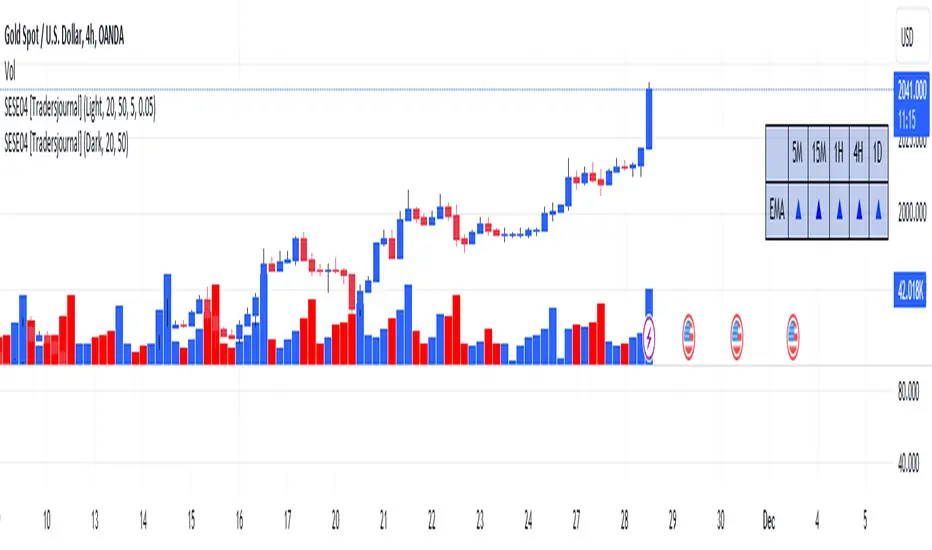
On the right side of the chart, you will see a table labeled "EMA" with arrows.
The rows correspond to different timeframes: 5 minutes (5M), 15 minutes (15M), 1 hour (1H), 4 hours (4H), and 1 day (1D).
Understanding the Arrows:
Each row of the table has two columns: "EMA" and an arrow.
"EMA" indicates the trend of the Exponential Moving Average (EMA) for the specified period.
The arrow indicates the direction of the trend: ▲ for bullish, ▼ for bearish.
Table Colors:
The colors of the table reflect the current trend based on the comparison between fast and slow EMAs.
Blue (▲) indicates a bullish trend.
Red (▼) indicates a bearish trend.
Table Theme:
The table has a dark (Dark) or light (Light) theme according to your preference.
The background, frame, and colors are adjusted based on the selected theme.
Usage:
Use the table as a quick indicator of trends on different timeframes.
The arrows help you quickly identify trends without navigating between different time units.
Designed to simplify analysis and avoid cluttering the chart with multiple indicators.
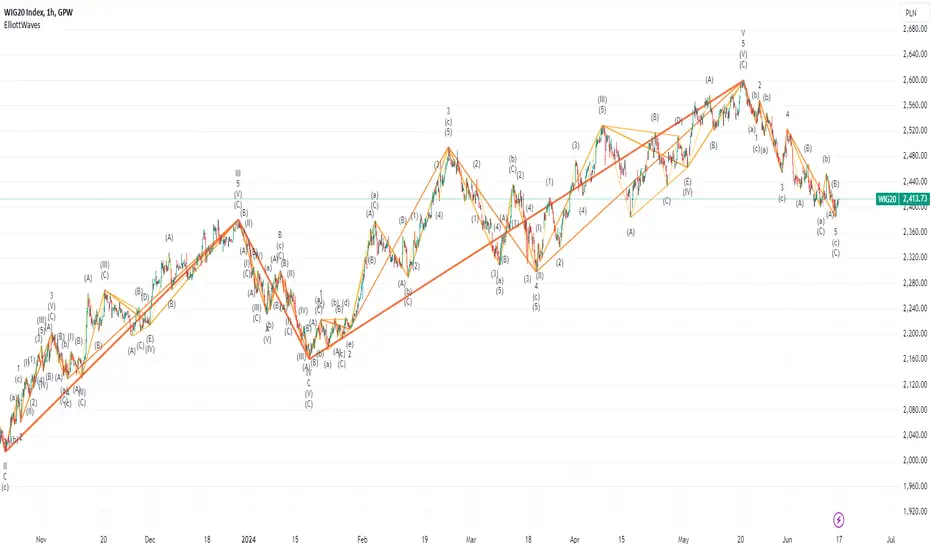
Elliot wavesA script marking Elliot waves on a chart.
This script can be used by any user. There is no need to have a PRO or PREMIUM account.
Script with limited access, contact author to get authorization
According to Elliott, a market cycle consists of eight waves. 5 upward waves and 3 downward waves following them, which are their corrections. In up and down movements, the odd waves are in the direction of the movement, and the even waves are their corrections. Analyzing in more detail, each direction movement again consists of 5 waves, and each correction consists of 3 waves.
The symbols used are non-standard (result of platform limitations):
Trend moves ⠀⠀⠀⠀⠀|⠀⠀Correction moves
𝐈 𝐈𝐈 𝐈𝐈𝐈 𝐈𝐕 𝐕 ⠀⠀⠀⠀⠀ |⠀⠀⠀ 𝐚 𝐛 𝐜
𝟏 𝟐 𝟑 𝟒 𝟓 ⠀⠀⠀⠀⠀⠀⠀|⠀⠀⠀ 𝐀 𝐁 𝐂
I II III IV V ⠀⠀⠀⠀⠀⠀⠀|⠀⠀⠀ a b c
1 2 3 4 5 ⠀⠀⠀⠀⠀⠀⠀ |⠀⠀⠀ A B C
(I) (II) (III) (IV) (V) ⠀ |⠀⠀⠀(a) (b) (c)
(1) (2) (3) (4) (5)⠀⠀ |⠀⠀⠀(A) (B) (C)
➀ ➁ ➂ ➃ ➄ ⠀⠀⠀⠀⠀ |⠀⠀⠀Ⓐ Ⓑ Ⓒ
❶ ❷ ❸ ❹ ❺ ⠀⠀⠀⠀⠀ |⠀⠀⠀🅐 🅑 🅒
This script is a part of the "Elliot waves" toolkit and require initial calibration done with separate script: "Elliot waves calibrator". Elliot waves calibrator will generate a set of numbers that you need to copy to Calibration params in script settings. Proper instruction will be shown on the screen.
Script settings:
Calibration - Fields used for script calibration.
Levels - Param deciding how many levels of waves should be shown on the chart. 0 is showing only the main waves, with +1 increase adding one more level of details.
Vertex filter - Filter eliminating highs and lows that are not an extreme over area width equal to vertex filter value.
8 sets of trend configurations, where you can specify: visiblity, line color, line width
Labels configuration where you can specify: visiblity, text size and text color.
Troubleshooting:
In case of any problems, please send error details to the author of the script.
Tick travel ⍗This script is a further exploration of 'ticks' (only on realtime - live bars), based on my previous script:
- www.tradingview.com -
What are 'ticks'?
... Once the script’s execution reaches the rightmost bar in the dataset, if trading is currently active on the chart’s symbol,
then Pine indicators will execute once every time an update occurs, i.e., price or volume changes ...
(www.tradingview.com)
This script has 2 parts:
1) Option: ' Tick up/down'
This is a further progression of previous work.
During bar development, every time there is an update (tick), a dot is placed.
If for example there is 1 tick (first of new bar), a dot will be placed on 1,
if it is the 8th tick off that bar, there will be a dot placed on 8.
While my previous script had the issue that there was an upper limit per bar (max 32),
this script (because it is working with labels) can place max 500 dots.
For each bar this is better, it has to be mentioned though that looking in history, once the limit of 500 has been reached,
you'll notice the last ones are being deleted. This is one of the reasons the script is not suitable for higher timeframes
(1h and higher, even higher than 5 minutes can give some issues if it is a highly traded ticker), if a bar would have more
than 500 ticks, they won't be drawn anymore (which is not desirable of course)
2) Option: ' Tick progression'
These are the same ticks, but placed on the candle itself, or you can show the candle:
Or 'without' candle (or 'black' colour):
When 'No candles' are enabled, the 'candles' get the colour at the right.
At the moment it is not possible to drawn between 2 candles, this technique uses labels with 'text',
each tick on a candle will have a 'space' added, so you can see a progression to the right.
Colours
- if price is higher than previous tick price -> green
- if price is lower than previous tick price -> red
- otherwise -> blue (dimmed)
There are options to choose the 'dot', when choosing 'custom',
just enter (copy/paste) your symbol of your choice in the 'custom' field:
Caveats:
- Labels and text will not always be exactly on the price itself
- The scripts needs more testings, possibly some ticks don't always get drawn as they should.
The lower the timeframe, the more possible issues can occur
- Since (candle option) the dots move to the right, the higher the timeframe and/or the more ticks,
the sooner ticks will go in the area of next candle.
That's why I made a separate 'start symbol'
-> This is the very first tick on each candle, then you can zoom in/out more easily until the dots don't merge into each other candle area:
A timeframe higher than 5 minutes mostly won't be feasible I believe
This script wouldn't be possible without the help of @LucF, also because of his script
With very much respect I am hugely inspired by him! Many Thanks to him, Tradingview, and everything associated with them!
Cheers!


PriceCatch Breakout Signals IOHi TradingView Community.
Here is a script that identifies and marks two different breakout levels on the chart. It works on all instruments - equities, forex, crypto & commodities.
Probable Breakout Buy Level
Stop-Reverse Buy Level
The above chart is self-explanatory. The script uses two different formulas to look out for breakouts. This logic opens up more opportunities.
As the levels are marked in advance before the breakouts occur, it will give traders ample time to study further and plan the trade.
PLAYING SAFE
After taking the trade, to play safe, I follow this method that once the Low of the price goes above the Breakout Level, I usually shift the stop loss to buy price to protect against any sudden reversal. For me protecting capital is important. As usual with price action, longer time-frames produce more reliable signals.
STOP LOSS
While the initial stop level is suggested, traders may also use the ATR to set stop loss. Users may find my free script 'ATR value on Chart' useful.
NOTE - PRIOR TO USING THIS SCRIPT:
You may use this script in addition to your other indicators or independently. Please remember that the script is shared with absolutely no assurances and warranties whatsoever regarding usability and as a responsible trader, please satisfy yourselves thoroughly and use it only if you are convinced it works for you. Remember, you are 100% responsible for your actions. If you understand and accept that, you may use the script. The script does not identify any short signals.
QUERIES/FEEDBACK
Please PM me.
Regards to all and wish everyone all the best with trading.

The Moon█ OVERVIEW
The Moon is a script that is designed to help Traders analyse their charts using the moon. This script consists of three main features :
1. Moon Phases Pro : This is a more powerful version of the default built-in Moon Phases where it would plot both past cycles and Future cycles with a better accuracy.
2. Moon Lines : This plots the moon's longitude into price. you can also select your desired $/degree ( price vs time unit) to make these lines better suited for your chart and the asset your playing with. We also didn't forget to add an option to enable harmonics of these lines. In addition, you can select "reverse" to get the downtrending plants as well.
3. Moon Angles : This allows you to highlight areas where the moon is at X degree. you can get the Moon at zero aris or 180 degrees or any other degree!.
We also added some styling options to help with the visuals.
█ Future Plans and upgrades to this script may include :
1. Enhanced algorithm for a faster loading/processing script.
2. More future dates plotting.
And more! Feel free to contact me with any feature that you would like to see in this script
█ How to use :
1. Open the settings.
2. Enable your desired tool and adjust the settings.
Give the script a few seconds and you should be set. Don't enable more than 2 tools at the same time, but if you want to do that, you can insert the same script twice or more in your chart.
This script is coded as an addon to the Gann ToolBox package/scripts.

Planetary Aspects & Transits█ OVERVIEW
Planetary Aspects and Transits are commonly used by Astrology Traders and Gann Traders for various reasons. This script is designed to highlight these planetary aspects and transitions on your chart. You can select your favorite planet -including the sun and the moon- and also select the aspect that you would like to view and this script will highlight it on the chart. The aspects that are included to choose from are ( 0, 30, 45, 60, 72, 90, 120, 135, 144, 150, and 180 degrees ). You can also select the mode of these aspects and transits ( Heliocentric vs Geocentric ).
This script offers two running options :
1. Planet vs aspect : using this option you will be able to select a planet and an aspect and we will find/highlight all the transitions vs all the planets in that aspect.
2. Planet vs Planet : using this option you will be able to select two planet and a single aspect to view on the chart.
█ Future Plans and upgrades to this script may include :
1. Enhanced algorithm for a faster loading/processing script.
2. More future dates plotting.
And more! Feel free to contact me with any feature that you would like to see in this script
█ How to use :
1. Open the settings.
2. Choose the planet/planets, and the aspect.
3. Enable the option.
Give the script a few seconds and you should be set.
This script is coded as an addon to the Gann ToolBox package/scripts.

Gann Planetary Lines█ OVERVIEW
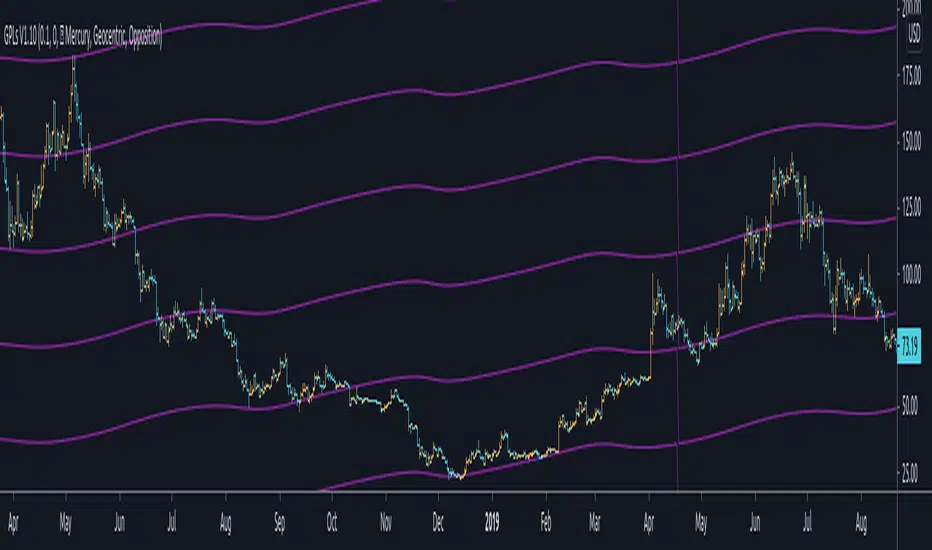
Gann Planetary Lines is one of the most powerful Gann Tools that converts planetary longitude angles into price. This script can be used in many different ways, methods, and trading systems.
This Script allows you to Plot Mercury, Venus, Mars, Jupiter, Saturn, Uranus, Neptune, and Pluto. While also allowing you to select the planetary line mode "Heliocentric" or "Geocentric"
One more important feature about this script. It also allows you to plot in the harmonics of these planetary lines : "Wheel of 24" ,"Semi-Sextile", "Semi-Square", "Sextile", "Quintile", "Square", "Trine", and "Opposition "
And of course you will be able to select the color of each one of the planets when it comes to styling.
One more important thing to mention, Yes you will be able to select the $/° value so you can square these lines perfectly in your chart!
█ Future Plans and upgrades to this script may include :
1. Further lines into the futures.
2. An option to Enable and Disable the 0° vertical line when the planet transition from 360° to 0°
3. Labels around the planetary lines to distinguish between them not only by color by text as well.
And more! Feel free to contact me with any feature that you would like to see in this script
█ How to use :
First of all, select the appropriate $/° value.
Then select the planet you would like to use from the list in the script's option.
Select the mode of the planet, "Heliocentric" or "Geocentric"
Make sure to enable the planet by clicking on the check mark.
Then you will be able to see these planets on your chart.
Additionally, I have included an option to add the harmonics to your planetary lines!
Simply select the harmonics that you would like to have and give it 10 seconds and it should be in your chart.
This script is coded as an addon to the Gann ToolBox package/scripts.
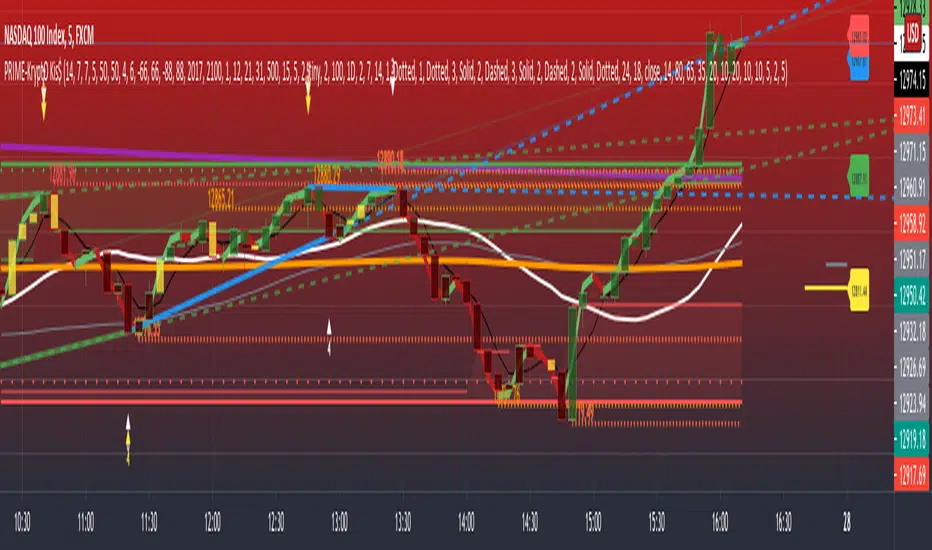
PRIME - Krypto Kiss+CCI+VPIntroducing from Prime Academy, the experimental "KryptO Kis$" algorithm, which combines our most powerful scripts all in one indicator. Available to the user are a full options platform to adjust parameters as well as individually blind indications for precise chart analysis. The following algorithms have been utilized:
* Prime Pulse (3 Candle System) - The original impulse and momentum indication system, it take rsi and tsi data to provide users with the indication of initial impulses, as well as a yellow candle to ascertain when there is a possible change of momentum in the current impulse.
* 5 SMA - The original Sniper Cross system seen from previous strategies, using the 4, 21, 50, 185, and 800 SMA's to determine changes of trend, continuation and support levels.
*CCI Indication on Chart - The system provides realtime CCI data in correlation to price positions within the general chart matrix, receiving system variables from various crosses on the 100 to -100 scale for CCI. Bullish and Bearish indications are clearly defined by separate colors.
* Volume Profile with tags - This system provides current volume data for the current time frame and sequence, also giving available tags at prices holding high volume orders, historically and present as indicated by the difference in length of indications. color saturations indicate the intensity of volume at the price in question .
* Shadow ZoneZ - Provides Support and resistance levels using rsi overbought and over sold data, sourced on the close of previous prices. Also embedded in the code is an additional volume confluence via indications of dotted lines with prices available, giving sequence positions of "Whales" and their support and resistance levels by order volume at price.
* An added bonus of the Shadow ZoneZ is the auto trend line and trend channel function , as well as the highlighted zones of liquidity waiting to be filled from previous impulses and lack of present retracements.
Any questions can be directed here on site via Direct Message. Any feedback is welcomed, and thank you in advance. Trade Well, Family!
- Dee Prime
//Disclaimer:
//Trading success is all about following your trading strategy and the indicators should fit within your trading strategy, and not to be traded upon solely
//The script is for informational and educational purposes only. Use of the script does not constitute professional and/or financial advice.
//You alone have the sole responsibility of evaluating the script output and risks associated with the use of the script.
//In exchange for using the script, you agree not to hold the publishing TradingView user liable for any possible claim for damages arising from any decision you make based on use of the script.
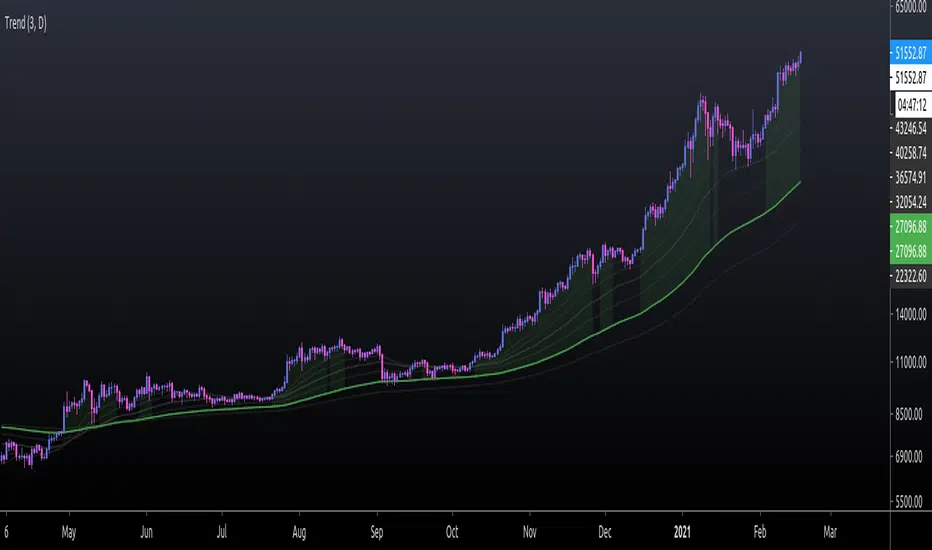
EMA TrendThe purpose of this script is to identify price trends based on EMAs. The relative position of price to specific EMAs and the position of certain EMAs towards each other are used to determine the trend direction. The script is intended for investors as a tool to define a basis for further evaluation. I do not use the script as a signal generator and would not recommend doing so without the help of additional indicators.
How to work with the script
The major (or long term) trend direction is determined by the 144 EMA much in the same way as the 200 MA is used in other systems. If the price is above the 144 EMA we are in a long term uptrend, below we are in a long term downtrend. This is to be taken with a grain of salt though. The 144 EMA is considerably shorter than the 200 SMA and is more prone to the price fluctuating around it during periods without a strong long term trend. I recommend using this as a confirmation for the short term trend.
The short term trend is derived from the position and slope of the price, the 21 EMA and the 55 EMA. If the price is above the 21 EMA, the 21 above the 55 EMA, both EMAs are sloping upwards and the distance between the two is increasing, we are talking about an uptrend (and vice versa for a downtrend). This is visualized by the color of the fill between the 144 EMA and close price. Green for uptrend, red for downtrend and no color for an undetermined trend.
The EMAs used are: 21 , 34 , 55 , 89 , 144 , 233 . Most of the EMAs are at 50 transparency to appear less dominant. For orientation, the 144 EMA is bright green to indicate its general importance for the trend determination, and the 55 EMAs is not transparent mainly to be able to identify positioning when the EMAs are close together.
Base time frame EMA
The 144 EMA is plotted twice where one is fixed to the daily time frame (can be configured) to be able to have the 144 on different timeframes during analysis. I find this very useful to keep the focus on my main time frame while analyzing trend on lower or higher time frames. This can also be turned off.
Configurability
This script is less configurable than I generally like with my other scripts. The reason is that the title attribute of the plots is not dynamic, and I use the data window often to get exact values from the script to determine buy targets for pullbacks and other things. Hence, I prefer not to have random names (or no names) in there to save mental capacity. If this ever becomes available, I'll gladly add this to this script. Till then, I encourage you to take the script and adjust it to your own needs. It should be simple enough even if you are just starting out in pine.
Waindrops [Makit0]█ OVERALL
Plot waindrops (custom volume profiles) on user defined periods, for each period you get high and low, it slices each period in half to get independent vwap, volume profile and the volume traded per price at each half.
It works on intraday charts only, up to 720m (12H). It can plot balanced or unbalanced waindrops, and volume profiles up to 24H sessions.
As example you can setup unbalanced periods to get independent volume profiles for the overnight and cash sessions on the futures market, or 24H periods to get the full session volume profile of EURUSD
The purpose of this indicator is twofold:
1 — from a Chartist point of view, to have an indicator which displays the volume in a more readable way
2 — from a Pine Coder point of view, to have an example of use for two very powerful tools on Pine Script:
• the recently updated drawing limit to 500 (from 50)
• the recently ability to use drawings arrays (lines and labels)
If you are new to Pine Script and you are learning how to code, I hope you read all the code and comments on this indicator, all is designed for you,
the variables and functions names, the sometimes too big explanations, the overall structure of the code, all is intended as an example on how to code
in Pine Script a specific indicator from a very good specification in form of white paper
If you wanna learn Pine Script form scratch just start HERE
In case you have any kind of problem with Pine Script please use some of the awesome resources at our disposal: USRMAN , REFMAN , AWESOMENESS , MAGIC
█ FEATURES
Waindrops are a different way of seeing the volume and price plotted in a chart, its a volume profile indicator where you can see the volume of each price level
plotted as a vertical histogram for each half of a custom period. By default the period is 60 so it plots an independent volume profile each 30m
You can think of each waindrop as an user defined candlestick or bar with four key values:
• high of the period
• low of the period
• left vwap (volume weighted average price of the first half period)
• right vwap (volume weighted average price of the second half period)
The waindrop can have 3 different colors (configurable by the user):
• GREEN: when the right vwap is higher than the left vwap (bullish sentiment )
• RED: when the right vwap is lower than the left vwap (bearish sentiment )
• BLUE: when the right vwap is equal than the left vwap ( neutral sentiment )
KEY FEATURES
• Help menu
• Custom periods
• Central bars
• Left/Right VWAPs
• Custom central bars and vwaps: color and pixels
• Highly configurable volume histogram: execution window, ticks, pixels, color, update frequency and fine tuning the neutral meaning
• Volume labels with custom size and color
• Tracking price dot to be able to see the current price when you hide your default candlesticks or bars
█ SETTINGS
Click here or set any impar period to see the HELP INFO : show the HELP INFO, if it is activated the indicator will not plot
PERIOD SIZE (max 2880 min) : waindrop size in minutes, default 60, max 2880 to allow the first half of a 48H period as a full session volume profile
BARS : show the central and vwap bars, default true
Central bars : show the central bars, default true
VWAP bars : show the left and right vwap bars, default true
Bars pixels : width of the bars in pixels, default 2
Bars color mode : bars color behavior
• BARS : gets the color from the 'Bars color' option on the settings panel
• HISTOGRAM : gets the color from the Bearish/Bullish/Neutral Histogram color options from the settings panel
Bars color : color for the central and vwap bars, default white
HISTOGRAM show the volume histogram, default true
Execution window (x24H) : last 24H periods where the volume funcionality will be plotted, default 5
Ticks per bar (max 50) : width in ticks of each histogram bar, default 2
Updates per period : number of times the histogram will update
• ONE : update at the last bar of the period
• TWO : update at the last bar of each half period
• FOUR : slice the period in 4 quarters and updates at the last bar of each of them
• EACH BAR : updates at the close of each bar
Pixels per bar : width in pixels of each histogram bar, default 4
Neutral Treshold (ticks) : delta in ticks between left and right vwaps to identify a waindrop as neutral, default 0
Bearish Histogram color : histogram color when right vwap is lower than left vwap, default red
Bullish Histogram color : histogram color when right vwap is higher than left vwap, default green
Neutral Histogram color : histogram color when the delta between right and left vwaps is equal or lower than the Neutral treshold, default blue
VOLUME LABELS : show volume labels
Volume labels color : color for the volume labels, default white
Volume Labels size : text size for the volume labels, choose between AUTO, TINY, SMALL, NORMAL or LARGE, default TINY
TRACK PRICE : show a yellow ball tracking the last price, default true
█ LIMITS
This indicator only works on intraday charts (minutes only) up to 12H (720m), the lower chart timeframe you can use is 1m
This indicator needs price, time and volume to work, it will not work on an index (there is no volume), the execution will not be allowed
The histogram (volume profile) can be plotted on 24H sessions as limit but you can plot several 24H sessions
█ ERRORS AND PERFORMANCE
Depending on the choosed settings, the script performance will be highly affected and it will experience errors
Two of the more common errors it can throw are:
• Calculation takes too long to execute
• Loop takes too long
The indicator performance is highly related to the underlying volatility (tick wise), the script takes each candlestick or bar and for each tick in it stores the price and volume, if the ticker in your chart has thousands and thousands of ticks per bar the indicator will throw an error for sure, it can not calculate in time such amount of ticks.
What all of that means? Simply put, this will throw error on the BITCOIN pair BTCUSD (high volatility with tick size 0.01) because it has too many ticks per bar, but lucky you it will work just fine on the futures contract BTC1! (tick size 5) because it has a lot less ticks per bar
There are some options you can fine tune to boost the script performance, the more demanding option in terms of resources consumption is Updates per period , by default is maxed out so lowering this setting will improve the performance in a high way.
If you wanna know more about how to improve the script performance, read the HELP INFO accessible from the settings panel
█ HOW-TO SETUP
The basic parameters to adjust are Period size , Ticks per bar and Pixels per bar
• Period size is the main setting, defines the waindrop size, to get a better looking histogram set bigger period and smaller chart timeframe
• Ticks per bar is the tricky one, adjust it differently for each underlying (ticker) volatility wise, for some you will need a low value, for others a high one.
To get a more accurate histogram set it as lower as you can (min value is 1)
• Pixels per bar allows you to adjust the width of each histogram bar, with it you can adjust the blank space between them or allow overlaping
You must play with these three parameters until you obtain the desired histogram: smoother, sharper, etc...
These are some of the different kind of charts you can setup thru the settings:
• Balanced Waindrops (default): charts with waindrops where the two halfs are of same size.
This is the default chart, just select a period (30m, 60m, 120m, 240m, pick your poison), adjust the histogram ticks and pixels and watch
• Unbalanced Waindrops: chart with waindrops where the two halfs are of different sizes.
Do you trade futures and want to plot a waindrop with the first half for the overnight session and the second half for the cash session? you got it;
just adjust the period to 1860 for any CME ticker (like ES1! for example) adjust the histogram ticks and pixels and watch
• Full Session Volume Profile: chart with waindrops where only the first half plots.
Do you use Volume profile to analize the market? Lucky you, now you can trick this one to plot it, just try a period of 780 on SPY, 2760 on ES1!, or 2880 on EURUSD
remember to adjust the histogram ticks and pixels for each underlying
• Only Bars: charts with only central and vwap bars plotted, simply deactivate the histogram and volume labels
• Only Histogram: charts with only the histogram plotted (volume profile charts), simply deactivate the bars and volume labels
• Only Volume: charts with only the raw volume numbers plotted, simply deactivate the bars and histogram
If you wanna know more about custom full session periods for different asset classes, read the HELP INFO accessible from the settings panel
EXAMPLES
Full Session Volume Profile on MES 5m chart:
Full Session Unbalanced Waindrop on MNQ 2m chart (left side Overnight session, right side Cash Session):
The following examples will have the exact same charts but on four different tickers representing a futures contract, a forex pair, an etf and a stock.
We are doing this to be able to see the different parameters we need for plotting the same kind of chart on different assets
The chart composition is as follows:
• Left side: Volume Labels chart (period 10)
• Upper Right side: Waindrops (period 60)
• Lower Right side: Full Session Volume Profile
The first example will specify the main parameters, the rest of the charts will have only the differences
MES :
• Left: Period size: 10, Bars: uncheck, Histogram: uncheck, Execution window: 1, Ticks per bar: 2, Updates per period: EACH BAR,
Pixels per bar: 4, Volume labels: check, Track price: check
• Upper Right: Period size: 60, Bars: check, Bars color mode: HISTOGRAM, Histogram: check, Execution window: 2, Ticks per bar: 2,
Updates per period: EACH BAR, Pixels per bar: 4, Volume labels: uncheck, Track price: check
• Lower Right: Period size: 2760, Bars: uncheck, Histogram: check, Execution window: 1, Ticks per bar: 1, Updates per period: EACH BAR,
Pixels per bar: 2, Volume labels: uncheck, Track price: check
EURUSD :
• Upper Right: Ticks per bar: 10
• Lower Right: Period size: 2880, Ticks per bar: 1, Pixels per bar: 1
SPY :
• Left: Ticks per bar: 3
• Upper Right: Ticks per bar: 5, Pixels per bar: 3
• Lower Right: Period size: 780, Ticks per bar: 2, Pixels per bar: 2
AAPL :
• Left: Ticks per bar: 2
• Upper Right: Ticks per bar: 6, Pixels per bar: 3
• Lower Right: Period size: 780, Ticks per bar: 1, Pixels per bar: 2
█ THANKS TO
PineCoders for all they do, all the tools and help they provide and their involvement in making a better community
scarf for the idea of coding a waindrops like indicator, I did not know something like that existed at all
All the Pine Coders, Pine Pros and Pine Wizards, people who share their work and knowledge for the sake of it and helping others, I'm very grateful indeed
I'm learning at each step of the way from you all, thanks for this awesome community;
Opensource and shared knowledge: this is the way! (said with canned voice from inside my helmet :D)
█ NOTE
This description was formatted following THIS guidelines
═════════════════════════════════════════════════════════════════════════
I sincerely hope you enjoy reading and using this work as much as I enjoyed developing it :D
GOOD LUCK AND HAPPY TRADING!

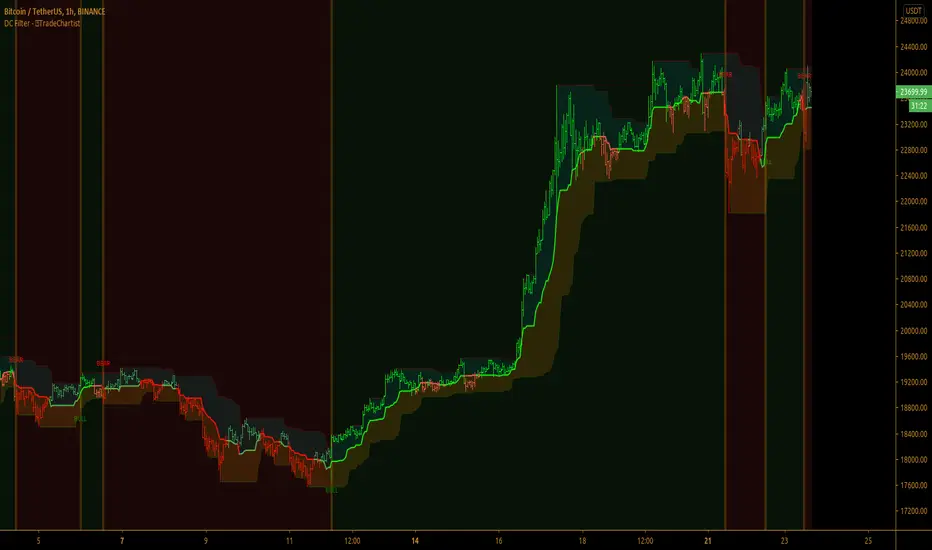
TradeChartist Donchian Channels Breakout Filter™TradeChartist Donchian Channels Breakout Filter is an elegant version of the classic Donchian Channels with few extra variations and option to filter breakouts based on user preferred Breakout price selection to generate Trade Entries.
===================================================================================================================
Features of ™TradeChartist Donchian Channels Breakout Filter
======================================================
Option to plot Donchian Channels of user preferred length, based on the Source price in addition to High/Low Donchian Channels.
Generates trade entries based on user preferred Breakout Price. For example, if the user prefers HL2 as breakout price, irrespective of the Donchian Channels type, trade entries are generated only when hl2 price (average of high/low) breaks out of the upper or lower band.
Option to plot background colour based on Breakout trend. The bull zones are filled with green background, the Bear zones are filled with red background and the bar that broke out is filled with orange background.
Option to colour price bars using Donchian Channels price trend. The Donchian Channels basis line is plotted using the same colours as coloured bars as default.
Alerts can be created for long and short entries using Once per Bar Close .
Note: This script does not repaint . To use the script for trade entries, wait for the bar close and use a second confirmator (includes fundamentals) based on asset type as some markets require users to have good pulse on the fundamentals as trading by Technicals/price action dynamic alone may not be safe.
===================================================================================================================
Best Practice: Test with different settings first using Paper Trades before trading with real money
===================================================================================================================
This is not a free to use indicator. Get in touch with me (PM me directly if you would like trial access to test the indicator)
Premium Scripts - Trial access and Information
Trial access offered on all Premium scripts.
PM me directly to request trial access to the scripts or for more information.
===================================================================================================================
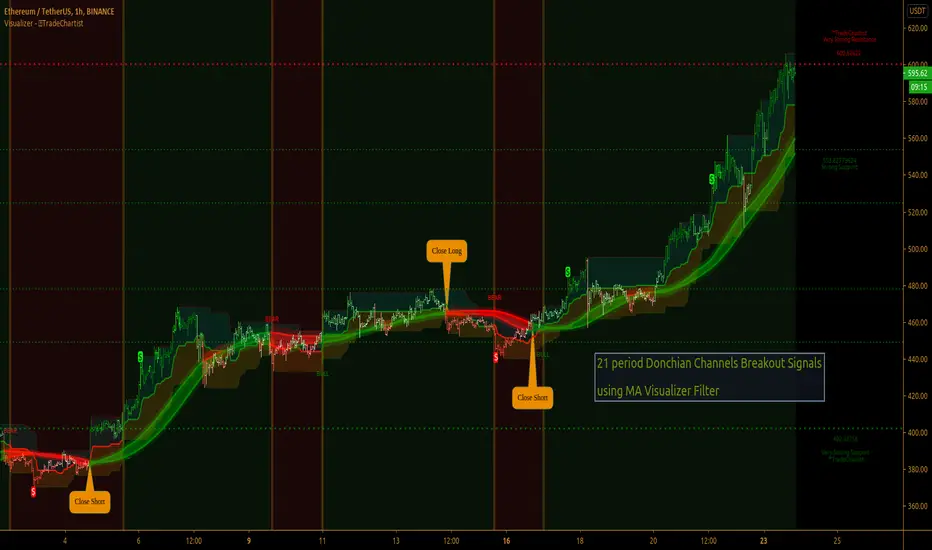
TradeChartist Visualizer ™TradeChartist Visualizer is a fully packed Trader's toolkit that helps decide Trade Entries and Exits based on Bollinger Bands and Donchian Channels breakouts and can be further exploited by the use of various visualizers and built in Filters like Ichimoku Cloud, 15 different Moving Averages, RSI, TradeChartist's original MA Visualizer and Automatic Levels Generator.
===================================================================================================================
Bollinger Bands is a classic indicator that uses a simple moving average of 20 periods, along with plots of upper and lower bands that are 2 standard deviations away from the basis line. These bands help visualize price volatility and trend based on where the price is, in relation to the bands.
Donchian Channels comprises of three plots - a upper band, a lower band and a mean line (or mid line of the channel). The upper band is based on highest high of N periods specified by the user and the lower band is based on the lowest low of N periods specified by the user. These channels help spot price breaching high or low of last N periods clearly, thereby aiding the trader to understand the price action of any security better on any given timeframe.
===================================================================================================================
╔═════ 𝗕𝗕 & 𝗗𝗼𝗻𝗰𝗵𝗶𝗮𝗻 𝗖𝗵𝗮𝗻𝗻𝗲𝗹𝘀 ═════╗
™TradeChartist Visualizer is based on the idea of Bollinger Bands and Donchian Channels Breakout model for generating Trade Entries. Visualizer uses the following three fundamental plot options from the settings that the user can choose from, to spot breakouts, support/resistance levels and the trading price range of the security.
1. Bollinger Bands
The 𝟏. 𝐁𝐨𝐥𝐥𝐢𝐧𝐠𝐞𝐫 𝐁𝐚𝐧𝐝𝐬 option plots the Bollinger Bands for the chart timeframe (default is 55 SMA with 1 standard Deviation). This can be changed by entering different values in BB Sᴛᴀɴᴅᴀʀᴅ Dᴇᴠɪᴀᴛɪᴏɴ and MA Lᴇɴɢᴛʜ ғᴏʀ BB/Dᴏɴᴄʜɪᴀɴ Cʜᴀɴɴᴇʟs .
To use a different Moving Average for the Bollinger Bands Basis line, uncheck 𝐒𝐌𝐀 𝐁𝐁 𝐨𝐧𝐥𝐲 - 𝐔𝐧𝐜𝐡𝐞𝐜𝐤 𝐟𝐨𝐫 𝐧𝐨𝐧-𝐒𝐌𝐀 𝐁𝐁
The option is enabled as default as it keeps the SMA as standard. Unchecking this option and choosing a different moving average out of the 15 MAs in the dropdown, the plot changes significantly for each. Also a warning label will appear on screen if Standard Deviation more than 1 is used for non standard MA for Bollinger Bands, as the settings must be tested for non-standard Bollinger Bands before planning to trade with it.
2. True Donchian Channels
The 𝟐. 𝐓𝐫𝐮𝐞 𝐃𝐨𝐧𝐜𝐡𝐢𝐚𝐧 𝐂𝐡𝐚𝐧𝐧𝐞𝐥𝐬 option plots Donchian Channels by inspecting the lookback lengths for highest highs and lowest lows of the user specified periods, which can be changed in Uᴘᴘᴇʀ Dᴏɴᴄʜɪᴀɴ Cʜᴀɴɴᴇʟ Lᴇɴɢᴛʜ and Lᴏᴡᴇʀ Dᴏɴᴄʜɪᴀɴ Cʜᴀɴɴᴇʟ Lᴇɴɢᴛʜ user input boxes from Visualizer settings.
3. Donchian Channels - MA and Non-MA Source
The 𝟑. 𝐃𝐨𝐧𝐜𝐡𝐢𝐚𝐧 𝐂𝐡𝐚𝐧𝐧𝐞𝐥𝐬 - 𝐌𝐀/𝐍𝐨𝐧-𝐌𝐀 𝐒𝐨𝐮𝐫𝐜𝐞 option plots modified Donchian Channels based on highest high and lowest low of Moving Average or the Source using user specified periods, which can be changed in Uᴘᴘᴇʀ Dᴏɴᴄʜɪᴀɴ Cʜᴀɴɴᴇʟ Lᴇɴɢᴛʜ , Lᴏᴡᴇʀ Dᴏɴᴄʜɪᴀɴ Cʜᴀɴɴᴇʟ Lᴇɴɢᴛʜ , MA Lᴇɴɢᴛʜ ғᴏʀ BB/Dᴏɴᴄʜɪᴀɴ Cʜᴀɴɴᴇʟs choosing the source plot from Sᴏᴜʀᴄᴇ and MA Type from MA ᴛʏᴘᴇ - (ғᴏʀ ᴘʟᴏᴛs 1 & 3) . For Donchian Channels plot of Non-MA Source, choose Use Source from MA ᴛʏᴘᴇ - (ғᴏʀ ᴘʟᴏᴛs 1 & 3) dropdown.
===================================================================================================================
╔═════════ 𝗠𝗔 𝗩𝗶𝘀𝘂𝗮𝗹𝗶𝘇𝗲𝗿 ═════════╗
MA Visualizer is a powerful and very useful original visual method to plot Moving Averages of the close price of the security for user specified look back period in a visually appealing style in the form of colour coded bands. MA Visualizer not only helps the trader spot the price action of the security relative to the moving average, but also paints a visual picture of the trend strength, which must be seen and used on chart to appreciate its elegance.
Activate 𝗠𝗔 𝗩𝗶𝘀𝘂𝗮𝗹𝗶𝘇𝗲𝗿 and choose the MA type from MA Vɪsᴜᴀʟɪᴢᴇʀ Tʏᴘᴇ dropdown and entering the lookback period in MA Vɪsᴜᴀʟɪᴢᴇʀ ᴘᴇʀɪᴏᴅ input box. MA Visualizer colour theme can be be changed from MA Vɪsᴜᴀʟɪᴢᴇʀ Cᴏʟᴏʀ Sᴄʜᴇᴍᴇ dropdown.
The faster of the two set of bands that form the MA Visualizer reacts to price action faster and can be clearly seen from its change of colour from Bull Colour to Bear Colour or viceversa earlier than the slower set of bands. The fill colour between the bands also helps the user stay in a trade or exit a trade based on other confirmators or filters included in ™TradeChartist Visualizer .
===================================================================================================================
╔═══════ 𝗦𝗶𝗴𝗻𝗮𝗹𝘀 𝗮𝗻𝗱 𝗙𝗶𝗹𝘁𝗲𝗿𝘀 ═══════╗
𝗦𝗶𝗴𝗻𝗮𝗹𝘀
Trade Signals can be enabled along with use of various filters from this heading in Visualizer settings. To plot Trade entry markers on chart when a trade signal is generated, enable 𝐁𝐁/𝐃𝐨𝐧𝐜𝐡𝐢𝐚𝐧 𝐂𝐡𝐚𝐧𝐧𝐞𝐥𝐬 𝐁𝐫𝐞𝐚𝐤𝐨𝐮𝐭 𝐒𝐢𝐠𝐧𝐚𝐥𝐬.
The script automatically detects the breakouts based on user specified settings under 𝗕𝗕 & 𝗗𝗼𝗻𝗰𝗵𝗶𝗮𝗻 𝗖𝗵𝗮𝗻𝗻𝗲𝗹𝘀. Trade Entries are plotted on the real-time breakout candle, so it is recommended to wait for bar close before taking a position in the direction of the breakout.
𝗙𝗶𝗹𝘁𝗲𝗿𝘀
Various Filters can be used from this heading to reduce noise and help make the trade decision more effective and eliminates unproductive trades when the price is ranging or during sideways movement.
To use Filters, enable 𝐔𝐬𝐞 𝐓𝐫𝐚𝐝𝐞 𝐅𝐢𝐥𝐭𝐞𝐫 and choose the Filters from under Tʀᴀᴅᴇ Fɪʟᴛᴇʀ 1 and Tʀᴀᴅᴇ Fɪʟᴛᴇʀ 2 . If --- is chosen, no filter will be used. Trade filter parameters can be changed from under 𝗙𝗶𝗹𝘁𝗲𝗿 𝗣𝗮𝗿𝗮𝗺𝗲𝘁𝗲𝗿𝘀 section of Visualizer settings. The two trade filter dropdowns enable traders to use upto 2 filters from the following.
══> MA filter - This filters entries after a breakout only if the close price had breached the MA price. Filter MA is based on the same settings as MA Visualizer. This MA used for Filter can also be plotted by enabling 𝐃𝐢𝐬𝐩𝐥𝐚𝐲 𝐌𝐀 𝐅𝐢𝐥𝐭𝐞𝐫 (𝐌𝐀 𝐕𝐢𝐬𝐮𝐚𝐥𝐢𝐳𝐞𝐫 𝐒𝐞𝐭𝐭𝐢𝐧𝐠𝐬). To view this MA plot clearly, disable MA Visualizer.
══> MA Visualizer filter - This filters entries after a breakout only if both set of MA Visualizer bands had turned into same colour (either Bull or Bear Colour) agreeing with the direction of the breakout.
══> RSI filter - This filters entries after a breakout only if the RSI had crossed above RSI - Lᴏɴɢ Eɴᴛʀʏ Fɪʟᴛᴇʀ for Longs or if RSI had crossed below RSI - Sʜᴏʀᴛ Eɴᴛʀʏ Fɪʟᴛᴇʀ .
══> Kumo Breakout filter - This filters entries after a breakout only if price had closed above or below the Kumo of the Ichimoku Cloud in the direction of the breakout.
══> Price crossing Kijun Sen - This filters entries after a breakout only if close price had crossed Kijun Sen or the Ichimoku Base Line in the direction of the breakout.
To visualize the Kumo Breakout or Price crossing Kijun Sen, Ichimoku Cloud can be plotted on chart by enabling 𝐃𝐢𝐬𝐩𝐥𝐚𝐲 𝐈𝐜𝐡𝐢𝐦𝐨𝐤𝐮 𝐂𝐥𝐨𝐮𝐝 from 𝗙𝗶𝗹𝘁𝗲𝗿 𝗣𝗮𝗿𝗮𝗺𝗲𝘁𝗲𝗿𝘀 section of Visualizer settings.
===================================================================================================================
╔═══ 𝗔𝘂𝘁𝗼𝗺𝗮𝘁𝗶𝗰 𝗟𝗲𝘃𝗲𝗹𝘀 𝗚𝗲𝗻𝗲𝗿𝗮𝘁𝗼𝗿 ════╗
Enabling 𝗔𝘂𝘁𝗼𝗺𝗮𝘁𝗶𝗰 𝗟𝗲𝘃𝗲𝗹𝘀 𝗚𝗲𝗻𝗲𝗿𝗮𝘁𝗼𝗿 plots support and resistance levels automatically without any input from the user other than preferred levels plot from the indicator settings namely,
Plot Local Levels for Lower TF - Plots all important Support/Resistance levels for mostly smaller time frames (can be used for up to 1hr in most cases). Recommended for Scalping/Swing Trading mostly dependent on volatility.
Plot Local Levels for Higher TF - Plots all important Support/Resistance levels inferred from mostly time frames - Short to Mid term outlook.
Use Trading View Data Window to make effective use of the levels.
===================================================================================================================
╔═════════ 𝗨𝘀𝗲𝗳𝘂𝗹 𝗘𝘅𝘁𝗿𝗮𝘀 ═════════╗
Volatility exhaustion is detected by the script and plots $ on bar highs for Long Trades and bar lows for Short Trades if Tᴀᴋᴇ Pʀᴏғɪᴛ Bᴀʀs is enabled.
Candles/Bars can be colored with Price action trend strength by enabling Vɪsᴜᴀʟɪᴢᴇʀ Cᴏʟᴏʀ Bᴀʀs and by choosing one of two themes from Bᴀʀ Cᴏʟᴏʀ Sᴄʜᴇᴍᴇ . Bar colors can also be inverted using Iɴᴠᴇʀᴛ Bᴀʀ Cᴏʟᴏʀs option.
To paint the background of the chart to spot trade zones, enable Tʀᴀᴅᴇ Zᴏɴᴇs Bᴀᴄᴋɢʀᴏᴜɴᴅ Fɪʟʟ .
Alerts
Alerts can be created for Long and Short entries by using Once Per Bar Close as Alert Frequency. Entries are generated on Real time bars based on Breakout and filter conditions. It is recommended to wait for bar close before taking a position based on Visualizer Trade Entries.
The indicator does not repaint and can be confidently used for alerts and trade entries without worrying about signals disappearing.
™TradeChartist Visualizer can also be connected to ™TradeChartist Plug and Trade to generate entries along with Targets, Stop Loss plots etc. Target and Stop Loss alerts can be created using Plug and Trade's Alerts system.
===================================================================================================================
There are several combinations of settings that can be tested on the security traded based on timeframe and risk/reward expectations. The indicator can be used for trade entries with filter combinations or can be used as standalone Visualizer for trend confirmations, levels etc. Following are a few examples using the Visualizer.
Example Charts
1. ETH-USDT 1hr chart using Bollinger Bands (55/1, SMA) with 89 period Hull MA as MA Visualizer filter for BB Entries.
2. AAPL 1hr chart using 34 period Donchian Channels with 89 period Zero-Lag EMA as MA Visualizer filter for Entries.
3.EUR-USD 1hr chart using 34 period Donchian Channels with 89 period TEMA as MA Visualizer Filter for Entries.
4. XBT Daily chart using 9/21 Donchian Channels with Kumo Breakout Filter and 34 period Hull MA Visualizer Filter for Entries connected to Plug and Trade.
5. LINK-USDT 1hr chart using 34 period Donchian Channels with 55 period LSMA MA Visualizer Filter for Entries with Ichimoku Cloud Plot.
===================================================================================================================
Best Practice: Test with different settings first using Paper Trades before trading with real money
===================================================================================================================
This is not a free to use indicator. Get in touch with me (PM me directly if you would like trial access to test the indicator)
Premium Scripts - Trial access and Information
Trial access offered on all Premium scripts.
PM me directly to request trial access to the scripts or for more information.
===================================================================================================================
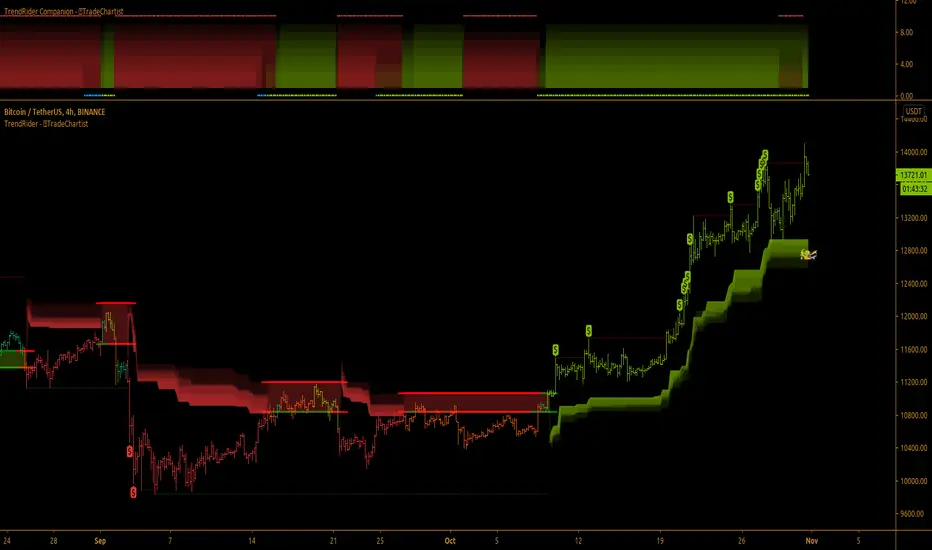
TradeChartist TrendRider ™TradeChartist TrendRider is an exceptionally beautiful and a functional indicator that does exactly what it says on the tin. The indicator rides the trend based on Momentum, Volatility, detecting critical zones of Support and Resistance along the way, which helps the indicator find the right trend to ride, plotting Trend Markers and Trade Signals based on only one piece of User input - TrendRider Type (Aggressive, Normal or Laid Back).
===================================================================================================================
What does ™TradeChartist TrendRider do?
™TradeChartist TrendRider dynamically calculates Support and Resistance levels when riding a trend and uses these levels for confirmation on breach or fail (on a candle close), before reversing from the current trend it is riding. The change of trend is signalled using Bᴜʟʟs or Bᴇᴀʀs labels which are plotted upon confirmation of the Trend.
TrendRider plots Bull and Bear Trend Markers on chart, which helps the user get a visual confirmation of the Trend.
TrendRider also plots $ signs to show Take Profit Bars and also paints Trend strength on price bars based on the Color Scheme, if these options are enabled from the indicator settings.
The above features can be clearly seen on the 1 hr chart of GBP-USD below.
===================================================================================================================
How to create Alerts for ™TradeChartist TrendRider Long and Short Entries?
Alerts can be created for Long or Short entries using Once Per Bar as Bᴜʟʟs or Bᴇᴀʀs labels appear only on confirmation after bar close.
===================================================================================================================
Does the indicator include Stop Loss and Take Profit plots?
This script doesn't have Stop Loss and Take Profit plots, but it can be connected to ™TradeChartist Plug and Trade as Oscillatory signal (" TrendRider Signal ") to generate Automatic Targets, set StopLoss and Take Profit plots and to create all types of alerts too. The 4hr chart of ICX-BTC below shows TrendRider connected to ™TradeChartist Plug and Trade.
===================================================================================================================
Does this indicator repaint?
No. This script doesn't repaint as it confirms its signals only after close above/below TrendRider's dynamic level and also uses security function to call higher time-frame values in the right way to avoid repainting. This can be verified using Bar Replay to check if the plots and fills stay in the same bar in real time as the Bar Replay.
===================================================================================================================
Example charts using TrendRider
Daily chart of BTC-USD
===================================================================================================================
15m chart of SPX
===================================================================================================================
1hr chart of ADA-USDT
===================================================================================================================
15m chart of XAU-USD
===================================================================================================================
4hr chart of Dow Jones Industrial Average
===================================================================================================================
Best Practice: Test with different settings first using Paper Trades before trading with real money
===================================================================================================================
This is not a free to use indicator. Get in touch with me (PM me directly if you would like trial access to test the indicator)
Premium Scripts - Trial access and Information
Trial access offered on all Premium scripts.
PM me directly to request trial access to the scripts or for more information.
===================================================================================================================
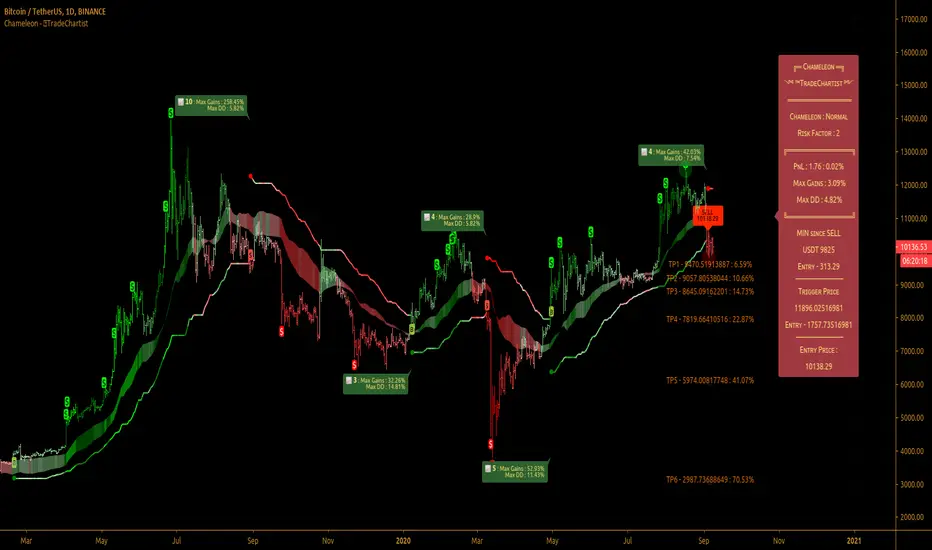
TradeChartist Chameleon™TradeChartist Chameleon is an exceptionally beautiful trend following indicator (visualised using Chameleon plot) based on Momentum and Volatility using User input of Chameleon Mode and Risk factor (ATR multiple) to generate Trade Opportunities.
===================================================================================================================
™TradeChartist Chameleon Features
Minimal user input of Chameleon Mode Selection from (Aggressive, Normal and Laid Back) and Chameleon Risk Factor (Min - 1, Max - 5 of ATR Multiple).
---> For Higher Timeframes, lower Risk Factor is recommended (Max - 3) as the trading range can be high based on Volatility.
---> For Lower Timeframes, higher Risk Factor can be used (Normal or Laid Back Mode) based on asset price volatility.
Comprehensive Chameleon Dashboard with useful information like Real-time Gains Tracker , User settings and general trade information. Dashboard can be customised based on user preference from Chameleon Settings.
Automatic Targets based on Trade.
Option to paint Price Bars to help identify Price Trend.
Option to display Profit Taking Bars (enabling this from settings will paint $ signs where Profit taking is recommended).
Option to color background based on trade type.
Alerts can be created for Long and Short Entry Signals using "Once per Bar" as Trade Entries are generated only upon confirmation (previous candle close below/above Chameleon Trigger line).
===================================================================================================================
How to create Alerts for ™TradeChartist Chameleon Long and Short Entries?
Alerts can be created for Long or Short entries using Once Per Bar as BUY and SELL labels appear with entries only on confirmation after bar close.
Does the indicator include Stop Loss and Take Profit plots?
This script doesn't have Stop Loss and Take Profit plots, but it can be connected to ™TradeChartist Plug and Trade as Oscillatory signal (" Chameleon ") to set StopLoss and Take Profit plots and to create all types of alerts too.
Does this indicator repaint?
No. This script doesn't repaint as it confirms its signals only after close above/below Chameleon Trigger line and also uses security function to call higher time-frame values in the right way to avoid repainting. This can be verified using Bar Replay to check if the plots and fills stay in the same bar in real time as the Bar Replay.
===================================================================================================================
Best Practice: Test with different settings first using Paper Trades before trading with real money
===================================================================================================================
This is not a free to use indicator. Get in touch with me (PM me directly if you would like trial access to test the indicator)
Premium Scripts - Trial access and Information
Trial access offered on all Premium scripts.
PM me directly to request trial access to the scripts or for more information.
===================================================================================================================
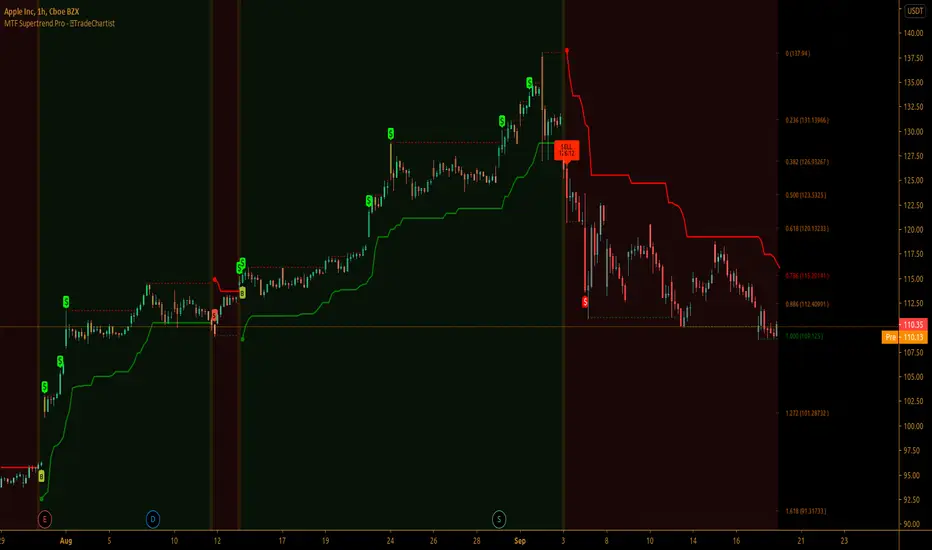
TradeChartist MTF Supertrend Pro™TradeChartist MTF SuperTrend Pro is the Multi Time-Frame version (using timeframe multiplier) of classic Volatility Stop or SuperTrend (Stop and Reverse indicator using multiple of Average True Range of lookback period trailing behind the price acting as both trend reversal signifier and StopLoss trigger at the same time ).
What does ™TradeChartist MTF SuperTrend Pro include?
Multi Time-Frame option using Time-Frame Multiplier to plot Higher Time Frame SuperTrend plot on Lower Time-Frame chart.
Auto-fibs - 2 types (1. Retracement from last significant high/low to previous significant low/high, 2. Retracement from Current High/Low to previous significant Low/High).
Trend identifying color bars.
Trend identifying Background colour.
Option to detect bars where Profit Taking is recommended using $ sign.
How to create Alerts for ™TradeChartist MTF SuperTrend Pro Long and Short Entries?
Alerts can be created for Long or Short entries using Once Per Bar as BUY and SELL labels appear with entries only on confirmation after bar close.
Does the indicator include Stop Loss and Take Profit plots?
This script doesn't have Stop Loss and Take Profit plots, but it can be connected to TradeChartist Plug and Trade as Non-Oscillatory signal to generate Automatic Targets, user set StopLoss and Take Profit plots and to create all types of alerts too.
Does this indicator repaint?
No. This script doesn't repaint as it confirms its signals only after close above/below SuperTrend plot and also uses security function to call higher time-frame values in the right way to avoid repainting. This can be verified using Bar Replay to check if the plots and fills stay in the same bar in real time as the Bar Replay.
===================================================================================================================
Tip 1: Using 1.618 as Timeframe Multiplier results in lucrative trades on most timeframes with ATR multiplier 1.618, 2.618 or 3.618. (Best Practice: Test with various values first on asset using Paper Trades before trading with real money)
Tip 2: Using bars, candles with no borders or Hollow Candles results in clear trend spotting with Bar color option enabled in settings.
===================================================================================================================
Chart below shows Performance of MTF SuperTrend Pro connected to Plug and Trade using Default settings.
===================================================================================================================
This is not a free to use indicator. Get in touch with me (PM me directly if you would like trial access to test the indicator)
Premium Scripts - Trial access and Information
Trial access offered on all Premium scripts.
PM me directly to request trial access to the scripts or for more information.
===================================================================================================================
TradeChartist PowerTracer™TradeChartist PowerTracer is an exceptionally well designed and functional indicator, requiring minimal user input to trace the asset's Bull and Bear Power. The indicator makes it visually engaging with its various color schemes and intelligent positioning of the PowerTracer Bar, tracking not just the current trend, but also the developing trend using a visually easy to understand Power plots.
What does ™TradeChartist PowerTracer do?
1. Tracks Bull and Bear Power and plots the information visually on chart using one of the following 3 Power plot options based on high or low power detection sensitivity.
𝗣𝗼𝘄𝗲𝗿𝗧𝗿𝗮𝗰𝗲𝗿 - Plot of the Bull and Bear Power Oscillator, pivotal to this script that tracks the true Bull and Bear Power along with Bull/Bear oscillator reading, calculated dynamically using a unique and original formula. Values beyond 50 and -50 are quite rare, but theoretically, they can go beyond 80 and -80. 𝗣𝗼𝘄𝗲𝗿𝗧𝗿𝗮𝗰𝗲𝗿's highs and lows are also tracked and updated real-time using labels placed exactly at the Highs and Lows with their readings.
Bar-wise Power Holder - Absolute Bull and Bear power of each bar. It is plotted by calculating the difference between Bull and Bear Power or each bar. The values can swing between -100 and +100 even though values above 90 and below 90 are rare. The bar color on the chart will be painted using this value to visually display the Bull/Bear strength if "Paint Bars on Chart" is enabled from the indicator settings.
Bar-wise Power Fight - Plot of Maximum Bull and Bear Power of every bar that helps visualize the fight between Bulls and Bears in each bar.
2. Visually displays the Balance of Power between the Bulls and the Bears using Opponent Power Gain background fill when it is 50% or over. For example, if the current PowerTracer plot is a Bull zone, enabling this setting with Opponent Power Gain % set at 75, will paint the background when Bear Power increases beyond 75% using the Bear Power Intensity fill based on Color Scheme the user opts from the settings. This option can be enabled or disabled from settings and the Opponent Power gain % (minimum 50%) can also be adjusted to spot the change in price trend early on.
3. Uses an accompanying 𝗣𝗼𝘄𝗲𝗿𝗧𝗿𝗮𝗰𝗲𝗿 bar that helps spot the true bull and bear power using simple linear blocks, displaying the power level using power intensity colors based on the color scheme.
4. Paints price bars and PowerTracer background using Power intensity colors based on Color Scheme from the indicator settings, which helps spot the increase or decrease in Bull and Bear Power.
5. Inverts bar colors, background fill and PowerTracer bar color to help see price using the Opponent's Point of View.
What markets can this indicator be used on?
-- Forex
-- Stocks - works best with 4hr or above and prices calculated taking gaps into account.
-- Commodities
-- Cryptocurrencies
and almost any asset on Trading View
What time-frames can this indicator be used on?
This indicator can be used on all timeframes. If the asset has very little volume/volatility or is far low in comparative value against the base currency, power detection can be choppy, but with most assets, this won't be an issue.
Does this indicator repaint?
-- No. Real-time Power plots can change colors and values based on current bar close as values get calculated dynamically. Once the bar closes, plots and power intensity colors don't repaint.
-- This can be verified using Bar Replay to check if the plots and fills stay in the same bar in real time as the Bar Replay
Does the indicator send alerts when the power shifts from Bull to Bear or from Bear to Bull?
Yes. Users can get alerts when Power gets shifted using Trading View alerts. This can be done by choosing '™TradeChartist PowerTracer' and 'Powershift to Bulls' or 'Powershift to Bears' under Trading View Alert condition and by using 'Once per bar close' as user needs to wait for candle close for Power shift confirmation.
Example Charts
In this split screen chart of Bitcoin, it can be seen how the 30m chart on left is Bearish and 5m chart on right is Bullish based on Power changes. The trend can be spotted on PowerTracer by spotting the Opponent's background fill that started showing when Opponent's power gained by over 75%. This is a good example using the script for scalping/swing trading using 2 timeframes. Note that the chart on the left shows Price bars and PowerTracer bar with inverted colors to show Opponent's point of view.
In this 15m chart of GBP-USD, 100% Power gain for Entries and Exits is used. This is a more conservative approach and is suited for less aggressive traders based on complete change of trend.
In this 2hr chart of Ethereum, all 3 Power plots are used to identify the trend using low sensitivity using 100% Power Gain entries and this shows how a trade can be held longer to maximise gains using entries with Power shift confirmations.
===================================================================================================================
This is not a free to use indicator. Get in touch with me (PM me directly if you would like trial access to test the indicator)
Premium Scripts - Trial access and Information
Trial access offered on all Premium scripts.
PM me directly to request trial access to the scripts or for more information.
===================================================================================================================

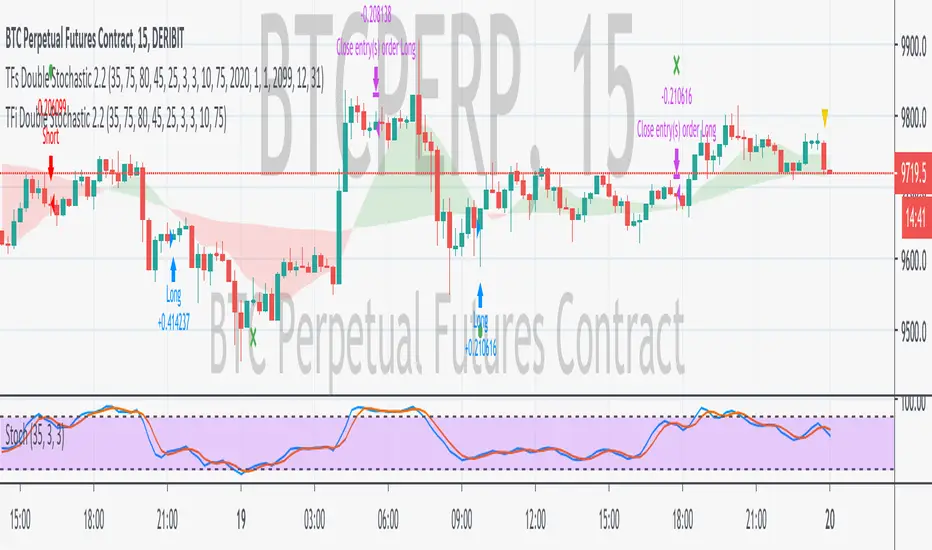
TFi Double Stochastic StudyThe Study script uses Stochastic indicators for entry and exit a position.
The entry and exit points are visualized in the chart via green arrows and crosses; the position follows the exact behavior of the strategy script.
The study also creates alerts, which follow the exact position of the entry/exit markers.
How to use
The Study works with most timeframes and instruments.
I'm also providing a "strategy" version of this Study, which can be used to backtest the strategy.
List of parameters
"Stochastic Length" ... Number of bars for Stochastic indicators
"Stochastic Overbought" ... Stochastic overbought level
"Stochastic Overbought Down Trend" ... Stochastic overbought level for down trends
"Stochastic Oversold Up Trend" ... Stochastic oversold level for up trends
"Stochastic Oversold" ... Stochastic oversold level
"Stochastic Smooth K" ... Stochastic K smoothing
"Stochastic Smooth D" ... Stochastic D smoothing
"Stochastic Confirmed" ... Enable to confirm the indicator value within the current bar
"MA Filter Enabled" ... Enable an additional filter for entering a position; the entries only follow the overall trend
"MA Fast Period" ... Fast filter period
"MA Slow Period" ... Slow filter period
List of alerts
Entry Long' ... Enter long position
'Entry Short' ... Enter short position
'Exit Long/Short' ... Exit long/short position
How to access
This Study is a "Invite Only" script. Please use the link below or send me a message via Tradingview to obtain access to the strategy and study script.
For enabling the script in your Tradingview chart window, click on "Indicators" and select "Invite-Only Scripts".
Auction Dashboard V2
This is not an indicator that tells you “buy/sell".
It is a market-state classification engine for auction-based index futures trading ( ES / NQ / MNQ etc.).
🧠 WHAT THIS SCRIPT REALLY IS
Auction Dashboard v3 answers one question only:
> What type of market are we in right now — and how aggressive should I be?
Everything else (entries, exits) is secondary.
🧩 CORE IDEA (THE FOUNDATION)
Markets are auctions.
Each day resolves into one of a few repeatable states:
1. Initiative (trend / drive)
2. Balance (rotation)
3. Failure (reversal)
This script:
* Identifies which auction we are in
* Confirms who is in control
* Filters out low-quality periods
* Tells you what style of trade is appropriate
---
1️⃣ PREVIOUS DAY VALUE (THE ANCHOR)
What it does
pinescript
pdh / pdl → VAH / VAL
```
* Uses true previous day high/low from Daily TF
* Builds value area from that range
* These levels do not change intraday
Why it matters
Institutions reference:
* Yesterday’s value
* Overnight acceptance/rejection of that value
Without this → your framework collapses.
---
2️⃣ ASIA & LONDON INVENTORY
What it does
* Checks where Asia and London closed
* Classifies them as:
* ABOVE VALUE
* BELOW VALUE
* IN VALUE
Why it matters
This tells you:
* Whether overnight participants accepted or rejected prior value
* Whether RTH opens with inventory imbalance
Example:
* Asia ABOVE + London ABOVE → bullish pressure
* Asia BELOW + London BELOW → bearish pressure
* Conflict → caution
---
3️⃣ RTH OPENING AUCTION TYPE
What it does
At NY open:
* Classifies open as:
* DRIVE ABOVE VALUE
* DRIVE BELOW VALUE
* OPEN IN RANGE
Why it matters
This defines the day type potential:
* Drive → initiative traders active
* Range → balance / responsive behavior
This is one of the most important parts of the script.
---
4️⃣ TIME & PARTICIPATION FILTERS (PROTECTION)
The script actively disables trading when:
* First few minutes after open (noise)
* Volume is too low
* VWAP is flat (no direction)
* Late RTH (chop & stop hunts)
Why it matters
Prop firms don’t care about your “edge” if you:
* Overtrade
* Trade chop
* Trade late day randomness
This is survival logic.
---
5️⃣ VWAP CONTEXT (FAIR PRICE)
What it does
* Tracks VWAP
* Measures:
* Distance from VWAP (relative to ATR)
* VWAP slope (direction)
Why it matters
VWAP tells you:
* Who is in control
* Whether price is accepting or rejecting fair value
Small distance = chop
Large distance + slope = expansion
---
6️⃣ HIGHER TIMEFRAME BIAS (ALIGNMENT)
What it does
Compares HTF open vs close.
* Bullish
* Bearish
* Neutral
Why it matters
You do not fade strength against HTF flow unless failure appears.
This prevents:
* Fighting trends
* Low expectancy fades
---
7️⃣ ORDER FLOW – CVD (REAL PARTICIPATION)
What it does
* Builds cumulative delta from volume
* Detects "structural divergence" using pivots
Why it matters
Price can lie.
Participation doesn’t.
Divergence = effort vs result mismatch
That’s where reversals come from.
---
8️⃣ LIVE MARKET STATE ENGINE (THE HEART)
The script classifies the market into:
🟢 INITIATIVE UP
* Open above value
* Above VWAP
* HTF bullish
* CVD rising
→ **Continuation only**
---
🔴 INITIATIVE DOWN
* Open below value
* Below VWAP
* HTF bearish
* CVD falling
→ **Continuation only**
---
🟡 BALANCE
* No clear initiative
* Rotation around VWAP
→ Fade extremes only
---
⚠️ DRIVE FAILURE
* Initiative attempt
* Loses VWAP
* CVD reverses
→ **Best reversal trades**
This is where most retail traders get destroyed — and where pros make money.
---
9️⃣ CONFIDENCE ENGINE (RISK ADJUSTMENT)
What it does
Scores:
* Auction quality
* Overnight agreement
* Range expansion
* VWAP distance
* Order flow health
Outputs:
* LOW
* MEDIUM
* HIGH
Why it matters
Same setup ≠ same size.
This tells you:
* Full size
* Reduced size
* No trade
---
🔟 ACTION ROW (EXECUTION GUIDANCE)
This is the only row you actually need to look at:
* FULL SIZE LONG
* FULL SIZE SHORT
* REDUCED SIZE
* AGGRESSIVE FADE
* NO TRADE
Everything above exists **only to justify this line**.
---
🎯 WHAT THIS SCRIPT IS *NOT*
❌ Not a signal generator
❌ Not an auto-trading system
❌ Not a scalping tool
It will **not save you** if:
* You chase
* You revenge trade
* You ignore stops
---
🧠 HOW A PRO USES THIS
1. Wait for **market state**
2. Trade **only the correct model**
3. Size according to confidence
4. Stand down when disabled
That’s it.
---
FINAL TRUTH
If you can’t make money with this framework:
* The problem is execution or psychology
* Not information
* Not indicators
This is already more structure than "90% of traders ever use".

Nova Trades | Opening Range IndicatorNova Trades | Opening Range With Confluences
Overview
The Nova Trades ORB Simple indicator is a clean, educational implementation of Opening Range Breakout (ORB) methodology combined with Exponential Moving Average (EMA) trend filtering. This script is designed to help traders visualize market structure during the critical opening session and identify high-probability breakout opportunities.
What Makes This Implementation Unique
1. Real-Time Dynamic ORB Tracking
Unlike static ORB indicators that plot fixed levels, this script:
Updates ORB high/low levels in real-time during the opening range period
Dynamically adjusts line positions as new highs/lows form within the ORB window
Uses line.set_y1() and line.set_y2() to provide smooth, live updates without cluttering the chart
Automatically extends ORB levels into the future for easy visual reference
2. Integrated Status Dashboard
The script includes a comprehensive real-time status table that shows:
Current ORB period status (ACTIVE vs COMPLETE)
Calculated ORB range size (useful for volatility assessment)
Current price position relative to ORB levels (ABOVE/BELOW/INSIDE)
Price position relative to EMA (trend context)
First breakout direction detection (BULLISH/BEARISH/PENDING)
This dashboard eliminates the need to manually assess market conditions and provides instant decision-making information.
3. Breakout Detection Logic
The script employs a first-breakout-only tracking system that:
Waits for the ORB period to complete before flagging breakouts
Records only the first directional break after ORB completion
Prevents false signals from intraday price whipsaws
Maintains breakout status throughout the trading session for consistency
4. EMA Confluence Filter
While many ORB scripts exist and EMA is a standard indicator, this script's value lies in how they work together:
Trading Edge: The combination provides a two-factor confirmation system:
ORB Breakout = Short-term momentum shift (microstructure)
EMA Position = Intermediate trend alignment (macrostructure)
Why This Matters:
ORB breakouts above ORB high + price above EMA = Aligned bullish momentum (highest probability long setups)
ORB breakouts below ORB low + price below EMA = Aligned bearish momentum (highest probability short setups)
Conflicting signals (e.g., ORB breakout up but price below EMA) = Lower probability, potential reversal zones
5. Customizable Time Periods
Supports multiple ORB timeframes (5m, 15m, 30m, 45m, 60m) because:
Different securities have different volatility profiles
Intraday traders may prefer shorter ORB periods (5-15m)
Position traders may prefer longer ORB periods (45-60m)
Allows optimization for specific trading styles and instruments
6. Clean Visual Design
Market open line clearly marks session start
Color-coded ORB levels (customizable) for instant visual recognition
Minimal chart clutter with toggle options for each component
Data window plots for programmatic strategy access
How It Works
Opening Range Breakout (ORB) Calculation
Initialization: At 9:30 AM NY time (market open), the script begins tracking
Range Formation: During the selected timeframe (default 30 minutes):
Continuously updates the highest high → ORB High
Continuously updates the lowest low → ORB Low
Range Completion: After the ORB period ends, levels are locked
Breakout Detection: Price breaking above ORB High (bullish) or below ORB Low (bearish) triggers the breakout flag
EMA Trend Filter
Calculates exponential moving average (default 50-period, customizable 1-500)
Provides trend context: Price > EMA = uptrend, Price < EMA = downtrend
Acts as dynamic support/resistance level
Combined Strategy Logic
Why Open Source?
This script is published as open source to:
Provide educational value to the trading community
Demonstrate clean coding practices for ORB implementations
Allow traders to customize and adapt to their specific needs
Serve as a foundation for more complex strategy development
The code uses standard Pine Script functions (ta.ema(), line.new(), table.new()) intentionally to maintain transparency and educational value.
Disclaimer
This indicator is for educational and informational purposes. It does not constitute financial advice. Past performance does not guarantee future results. Always practice proper risk management.

coinbot_ICT_Unicorn(AUTOTRADE)1. 🎯 핵심 기능: 자동매매 신호 전송 (Webhook)
이 스크립트는 매매 신호가 발생할 때마다, 사용자가 '자동매매 설정(Autotrade Settings)'에 입력한 값들을 조합하여 구체적인 JSON 메시지를 생성하고 alert() 함수를 통해 웹훅으로 전송합니다.
입력 설정: user_id, exchange(거래소), leverage(레버리지), capital_percent(투입 시드 %), sl_percent(손절 %), 그리고 3단계 분할 익절(tp1_price_percent, tp1_qty_percent 등) 설정을 입력받습니다.
신호 종류:
ENTRY (진입): 매수(buy) 또는 매도(sell) 신호가 발생하면, 위 모든 설정값을 포함한 진입 명령을 보냅니다.
CLOSE (손절): 전략의 내부 로직에 의해 손절가에 도달하면(slAlertTick), 포지션을 종료하라는 신호를 보냅니다.
TAKE_PROFIT (익절): 목표가에 도달하면(tpAlertTick), 설정된 물량만큼 익절하라는 신호를 보냅니다.
2. 📈 작동 원리: "ICT 유니콘" 매매 전략
이 스크립트의 진입 로직은 ICT(Inner Circle Trader) 개념 중 하나인 **'유니콘 모델'**을 따릅니다.
구성 요소 식별:
Breaker Block (BB): '브레이커 블록'을 식별합니다. 이는 특정 고점/저점을 만든 후 그 방향으로 가지 못하고 반대 방향으로 돌파(Break)된 오더 블록(Order Block)입니다.
Fair Value Gap (FVG): '공정 가치 갭' (가격 불균형 영역)을 식별합니다.
핵심 진입 신호 (Unicorn): 이 전략의 핵심 진입 조건은 **Breaker Block(BB)과 Fair Value Gap(FVG)이 중첩(Overlap)**되는, 소위 '유니콘'이라 불리는 강력한 지지/저항 영역이 발생하는 것입니다.
Long (매수) 진입:
가격이 하락하며 **'하락형 브레이커 블록(Bearish Breaker Block)'**을 만듭니다.
이후 가격이 상승 돌파하며 이 브레이커 블록 영역과 중첩되는 **'상승형 FVG(Bullish FVG)'**를 생성합니다.
이 중첩 영역(FVG-BB Overlap)이 바로 매수 진입의 근거가 됩니다. (코드가 dbgRequireRetracement 설정에 따라 FVG로의 되돌림을 기다리거나 즉시 진입 신호를 보냅니다.)
Short (매도) 진입:
가격이 상승하며 **'상승형 브레이커 블록(Bullish Breaker Block)'**을 만듭니다.
이후 가격이 하락 돌파하며 이 브레이커 블록 영역과 중첩되는 **'하락형 FVG(Bearish FVG)'**를 생성합니다.
이 중첩 영역이 매도 진입의 근거가 됩니다.
3. 📊 부가 기능
시각화: 차트 상에 FVG 영역과 Breaker Block 영역을 박스로 그려주어(설정에 따라 표시/숨김 가능) 매매 근거를 시각적으로 확인할 수 있게 합니다.
백테스팅 대시보드: 차트 우측 상단(기본값)에 이 전략의 누적 성과(총 진입 횟수, 승/패, 승률, 총수익률)를 보여주는 대시보드를 표시합니다.
요약
이 스크립트는 **"Breaker Block과 FVG의 중첩(유니콘 모델)"**을 유일한 진입 조건으로 사용하는 매우 구체적인 ICT 전략입니다. 이 조건이 충족되면, 사용자가 미리 설정한 상세한 리스크 관리 값들을 담아 자동매매 봇으로 즉시 실행 가능한 주문 신호를 전송하는 '올인원(All-in-One)' 전략 스크립트입니다.
요청하신 대로, 해당 지표 요약본을 영어로 번역하여 제공합니다.
This script is an automated trading (Autotrade) strategy signal generator based on the ICT "Unicorn" trading model.
As the "AUTOTRADE" in its name implies, the core purpose of this indicator is to detect specific conditions on the chart and send JSON-formatted order signals (webhooks) to an external automated trading bot.
Here are the core mechanics and features of this script:
1. 🎯 Core Feature: Automated Signal Transmission (Webhook)
Whenever a trade signal occurs, this script generates a specific JSON message by combining the values entered by the user in the "Autotrade Settings" and sends it via webhook using the alert() function.
Input Settings: It takes inputs for user_id, exchange, leverage, capital_percent (equity %), sl_percent (stop loss %), and settings for 3-stage split take-profits (e.g., tp1_price_percent, tp1_qty_percent).
Signal Types:
ENTRY: When a "buy" or "sell" signal occurs, it sends an entry command including all the settings above.
CLOSE (Stop-Loss): If the price hits the stop loss according to the strategy's internal logic (slAlertTick), it sends a signal to close the position.
TAKE_PROFIT: When a profit target is reached (tpAlertTick), it sends a signal to take profit on the specified quantity.
2. 📈 How It Works: The "ICT Unicorn" Strategy
The script's entry logic follows the "Unicorn Model," one of the concepts from ICT (Inner Circle Trader).
Identifying Components:
Breaker Block (BB): It identifies a "Breaker Block." This is an Order Block that, after creating a specific high/low, fails to continue in that direction and is instead broken through in the opposite direction.
Fair Value Gap (FVG): It identifies a "Fair Value Gap" (a price imbalance area).
Core Entry Signal (The Unicorn): The core entry condition for this strategy is the overlap of a Breaker Block (BB) and a Fair Value Gap (FVG), which creates a powerful support/resistance zone known as the "Unicorn."
Long Entry:
Price moves down, creating a "Bearish Breaker Block."
Subsequently, price breaks upward, creating a "Bullish FVG" that overlaps with this Breaker Block area.
This overlapping area (FVG-BB Overlap) becomes the basis for the long entry. (Depending on the dbgRequireRetracement setting, the code either waits for a retracement to the FVG or sends an immediate entry signal.)
Short Entry:
Price moves up, creating a "Bullish Breaker Block."
Subsequently, price breaks downward, creating a "Bearish FVG" that overlaps with this Breaker Block area.
This overlapping area becomes the basis for the short entry.
3. 📊 Additional Features
Visualization: It draws the FVG and Breaker Block zones as boxes on the chart (can be toggled in settings), allowing for visual confirmation of the trade setup.
Backtesting Dashboard: It displays a dashboard in the top-right corner (by default) showing the strategy's cumulative performance (total entries, wins/losses, win rate, total profit).
Summary
This script is a highly specific ICT strategy that uses the "overlap of a Breaker Block and an FVG (the Unicorn Model)" as its sole entry condition. When this condition is met, it transmits an immediately executable order signal to an automated trading bot, complete with all the detailed risk management values preset by the user. It is an "all-in-one" strategy script.

ZenAlgo - MultiverseThe ZenAlgo – Multiverse indicator provides a multi-timeframe view of Volume-Weighted Average Price (VWAP) levels and their dynamic interaction with price across seven defined timeframes: Daily, Weekly, Monthly, Quarterly, Semi-Annual, and Yearly. The indicator is intended to help traders contextualize price within time-based value areas and examine how price interacts with statistically relevant bands derived from those VWAPs.
VWAP Calculation and Period Structure
At the core, this script computes VWAP levels anchored to six distinct timeframes using volume data and a configurable source (default is HLC3). Each VWAP resets at the start of its corresponding period (e.g., Daily VWAP resets at the beginning of a new day) using timeframe.change() as a detection mechanism. This allows each VWAP level to reflect a clean aggregation of price and volume over its specified period.
VWAP levels are only computed if volume data is present and cumulative volume increases, ensuring logical consistency. If volume is missing or inconsistent, the script terminates execution with an error to prevent invalid outputs.
Band Calculation
Each VWAP is accompanied by one or two optional bands on both sides, calculated using percentage-based offset. Daily VWAP is configurable per user preference to use either standard deviation or a percentage-based offset. These bands provide a dynamic value area that expands or contracts with volatility or proportional price distance, respectively.
The bands help classify price as:
Inside the main band (e.g., between ±1 band): near average value
Inside extended band (e.g., ±2 bands): stretched but not extreme
Beyond extended band: potentially overheated or oversold conditions
This layering creates a multi-zoned map of value perception across timeframes.
Labeling and Historical Tracking
As each new VWAP is computed, it is stored in a bounded array alongside metadata such as label position, line objects, test count, and test state (whether price has interacted with it). Each level is drawn as a dotted horizontal line and labeled with its value and corresponding period (e.g., "D", "W", "M").
Price interaction with a VWAP level (i.e., candle high/low crossing the line) changes the styling of the label and line, marking it as "tested." A cap on how many tested levels are retained (default 10) avoids excessive clutter and resource usage.
These persistent horizontal levels give the trader a visual reference of where value was defined in previous periods and how price has respected or ignored those levels over time.
Summary Tables and Grid
Two visual table overlays are provided:
1. VWAP Summary Table , this table shows:
VWAP values per timeframe
Trend interpretation (rising, falling, stable) relative to price
Ranked order of VWAP values (from highest to lowest)
The order is recalculated each bar to reflect the vertical positioning of each VWAP on the price chart.
2. VWAP Relationship Grid
A grid matrix compares each VWAP and current price against all others. Each cell reflects whether a given source is above, below, or within a tolerance threshold relative to another. Colors (green, red, gray) visually encode the result, with the diagonal marked in black and unused cells disabled.
This matrix helps identify alignment or dissonance among timeframes, allowing users to detect whether shorter-term value is leading or lagging longer-term value.
Price Band Classification
For the Daily VWAP specifically, the script includes an extra classification system. It assigns the current price to a zone (e.g., "At VWAP", "Bear Band", "Above Bull Band 2") based on where the price lies in relation to the VWAP bands. This classification is also used for dynamic coloring and added to the daily label.
Display Controls
The script offers fine-grained controls:
Toggle visibility of each VWAP and band group independently
Adjust the offset of labels from the current bar
Customize band multipliers and color transparency
Limit the number of historical VWAP labels plotted
Position both the summary and grid tables flexibly on screen
These options allow traders to declutter their charts and focus on the most relevant context for their strategy.
How to Interpret and Use
This indicator provides a structured view of market value perception across various timeframes. For example:
When price converges with multiple VWAPs, it may suggest consensus on value.
When price moves away from all VWAPs, it may indicate trending or stretched conditions.
Crosses and retests of VWAPs (especially higher-timeframe ones) can act as areas of interest.
The band-based classification helps identify transitional zones and whether price is situated in an area where value is being accepted or rejected.
The summary tables offer a high-level dashboard of price positioning and value structure, which can assist with top-down analysis, filtering setups, or contextual decision-making.
Added Value Compared to Free Alternatives
Most free VWAP scripts:
Cover only a single timeframe (often daily or session-based)
Lack historical level tracking with tested/retested visualization
Do not support grid-level relationships or multi-timeframe band analysis
Offer limited configuration over how bands are calculated or displayed
This script consolidates multiple value areas in one consistent framework and goes further by tracking historical relevance, providing interaction logs, and organizing data into actionable overlays.
For traders seeking comprehensive value context across intraday and swing horizons, this tool offers persistent and structured data views that are otherwise unavailable through individual, isolated VWAP tools.
Limitations and Disclaimers
The indicator depends on volume data. On instruments with unreliable or synthetic volume (e.g., certain spot forex or CFDs), results may not be meaningful.
Band-based interpretation should not be used as a signal mechanism on its own.
On low timeframes, longer-period VWAPs may appear flat or visually compressed.
As with any analytical tool, interpretation requires trader discretion and should be combined with broader context.